
Daniel Garcia
Connected to Wi-Fi, but no Internet. Where is the problem?
Versão portuguesa →Connecting to Wi-Fi is only part of the journey to a website. Understanding where that journey breaks down helps us troubleshoot methodically and explain what is happening more clearly.
In this article
Connected to what, exactly?
We open the laptop, connect to Wi-Fi and try to visit a website. The page keeps loading. We try another. Nothing.
The network name is right. The signal looks good. So why can we not browse the web?
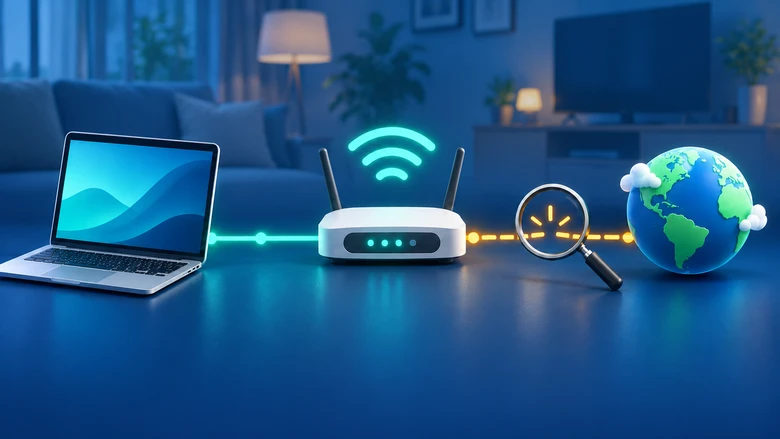
The answer starts with a simple distinction: being connected to Wi-Fi does not guarantee Internet access. The wireless connection lets us communicate with the local network. There still needs to be a working path to the service we want to use.
On a home network, the device we call the router usually performs several functions: it provides Wi-Fi, connects devices to one another and forwards traffic to other networks. One of these functions can keep working while another fails.
Before changing settings, I prefer to break the problem down into smaller questions: does it only affect this computer? Can we reach the router? Can we contact an external address? Does DNS respond?
We will follow that order on a Windows computer on a typical home network. The connectivity examples use IPv4; a network may also have IPv6, which needs to be investigated separately when the results do not match.
First: is it one website or everything?
Before opening the terminal, try two or three different websites. If only one fails, we do not yet have grounds to conclude that there is no Internet access: the problem may be with that website or the connection to it.
Next, test another device on the same Wi-Fi network. A mobile phone will do, with one precaution: temporarily turn off mobile data to make sure the comparison really uses Wi-Fi. We can turn it back on afterwards.
If the phone can browse and the computer cannot, we start by investigating the computer or its connection. If several devices fail, a shared problem with the router or the Internet provider’s connection becomes more likely. This comparison gives us a clue; it does not identify the cause on its own.
Microsoft’s Wi-Fi troubleshooting guide also recommends comparing the behaviour on another device.
Has the computer received a network configuration?
Open Terminal, PowerShell or Command Prompt and run:
ipconfig /allThis command displays the configuration of the network connections. There may be several: Wi-Fi, Ethernet, VPN and virtual adapters. Look for the Wi-Fi connection we are actually using.
For now, four items matter:
| Item | What it does |
|---|---|
| IPv4 address | Identifies the computer’s connection on that IPv4 network. |
| Subnet mask | Helps determine which destinations belong to the same subnet. |
| Default gateway | The next destination used to reach other networks when there is no more specific route. At home, this is usually the router. |
| DNS servers | Answer queries about names, including the addresses associated with websites. |
Here is a simplified example, with labels adapted for readability:
IPv4 address:          192.168.1.50
Subnet mask:           255.255.255.0
Default gateway:       192.168.1.1
DNS server:            192.168.1.1
These values are illustrative. They should not be copied into the computer’s configuration. Our network may well use different addresses.
The DNS server and gateway can have the same address because the router can receive DNS queries from devices and forward them to another server. The functions remain different.
The ipconfig documentation explains the information displayed; Microsoft’s introduction to TCP/IP addressing covers addresses, masks and gateways in more detail.
What if the address starts with 169.254?
On a home network configured to obtain an address automatically, an IPv4 address such as 169.254.23.8 is a clue that the computer may not have received the expected configuration through DHCP.
DHCP is the mechanism that normally provides that configuration automatically. Addresses in the 169.254.x.x range are link-local: they cannot be used to route IPv4 traffic across the Internet, as described in RFC 3927.
This points us towards the local IPv4 configuration, but it does not show that all communication has failed: IPv6 connectivity may still be available, for example. Nor does it prove that the router is faulty.
Can we reach the router?
Check the gateway listed for the Wi-Fi connection. If it is 192.168.1.1, run:
ping 192.168.1.1If our gateway has a different address, substitute it in the command.
The ping command sends echo requests using a protocol called ICMP and waits for a reply. Receiving an echo reply from the gateway shows that we can communicate with it at that moment. It does not yet show that we can reach the Internet.
If a message such as Request timed out appears, the request received no reply within the allotted time. There may be a communication problem, but these requests may also be filtered. A destination unreachable error is not a successful echo reply either.
That is why an unanswered ping is a clue, not a definitive diagnosis. The command documentation describes this IP connectivity test and its timeout messages.
What about an address outside our network?
We can now test a public IPv4 address without depending on name resolution:
ping 1.1.1.1The address 1.1.1.1 belongs to Cloudflare’s public DNS service. In this command, we are only testing for ICMP replies from that address; we are not making a DNS query or changing the computer’s DNS server.
If we receive echo replies, there is two-way IPv4 communication with that destination. This is useful information, but it does not guarantee that every website or service works.
If the router replies and this destination does not, it is worth investigating the path out of the network. Several possibilities remain, including filtering of the test itself. This is not enough to attribute the fault to the Internet provider.
Can DNS resolve a name?
When we enter an address such as www.microsoft.com, we need to obtain the IP addresses associated with that name. This is where DNS, the Domain Name System, comes in.
To make a query:
nslookup www.microsoft.comWithout a second argument, nslookup queries the tool’s default DNS server. Look for the addresses returned for the name being queried: simply displaying the DNS server’s address does not mean the query succeeded.
If we can communicate with the external IP address but this query fails, we have reason to investigate name resolution. We do not yet have proof that changing DNS will be enough.
On a home network, we can compare this with a direct query to Cloudflare’s public DNS server:
nslookup www.microsoft.com 1.1.1.1This second command does not change the Windows settings. If it works and the first one fails, it helps focus the investigation on the default server or the path to it. On a workplace network, queries to external servers may be blocked by policy.
The nslookup documentation explains these two arguments.
There is another limitation: the browser may use DNS over HTTPS and a different provider from the one used in this test. Mozilla explains how this works in Firefox. A successful query in the terminal does not, on its own, guarantee that name resolution in the browser is working in the same way.
Put the clues together before changing settings
The results help us choose the next step:
| What we observe | What makes sense to investigate |
|---|---|
| Only one website fails | The website and the connection to that destination. |
| Only one device fails | That device’s connection and configuration. |
| An unexpected link-local IPv4 address appears | The process of obtaining the IPv4 configuration through DHCP. |
| The gateway replies, but the external destination does not | The path out of the network and any filtering of the test. |
| The external IP address replies, but the DNS query fails | Name resolution and access to the DNS server. |
| The tests work, but the browser still fails | The browser, its DNS configuration, a proxy, a VPN or the destination service. |
We can try another browser to see whether the behaviour is the same. If a VPN or proxy is involved, it is worth checking its role in the connection; on a managed network, that investigation should involve the person responsible for IT.
Restarting the router can help in some situations, but it interrupts the connection for everyone else using it. If we do restart it, we need to distinguish a restart from a factory reset: pressing Reset can erase settings. Microsoft itself reserves a Windows network reset for a later stage of troubleshooting because of the changes it makes.
A more useful question than ‘is the Internet broken?’
We will not always be able to fix the fault ourselves. Even so, we can contact technical support with much better information: which devices are affected, what configuration they have and which tests received a reply.
Instead of just saying ‘I have Wi-Fi, but no Internet’, we can explain: ‘it affects both computers; we can reach the router, but we do not receive a reply from the external destination’. That narrows down the possibilities and avoids starting the investigation from scratch.
The purpose of these commands is to make the problem smaller and easier to understand. When we know how far communication works, the next step depends less on luck.